
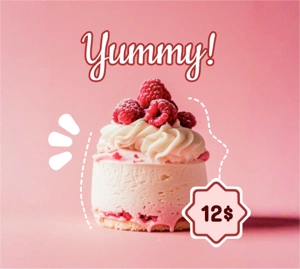
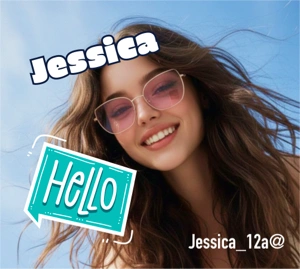
"Our team uses the Design editor to turn one source image into social posts, ad visuals, and campaign covers without moving between multiple design apps."
Marketing team
Campaign design workflow
Use Magic Eraser's Design editor to create social media posts, thumbnails, banners, posters, product visuals, and marketing assets faster. Combine text, shapes, backgrounds, resize presets, image adjustments, and AI editing tools inside one online canvas.
Use the Design editor to combine images, text, shapes, and background styling without rebuilding the asset in separate tools. It works well for quick promotional layouts, ecommerce content, and everyday social design work.
Start your free trial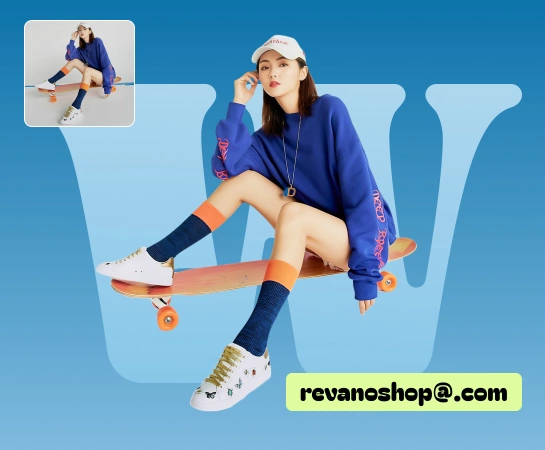
When teams need to add headlines, swap backgrounds, arrange layers, resize layouts, or prepare multiple campaign variations, the Design editor keeps everything in one place. It is a practical way to reduce tool switching and produce visuals faster.
Start your free trial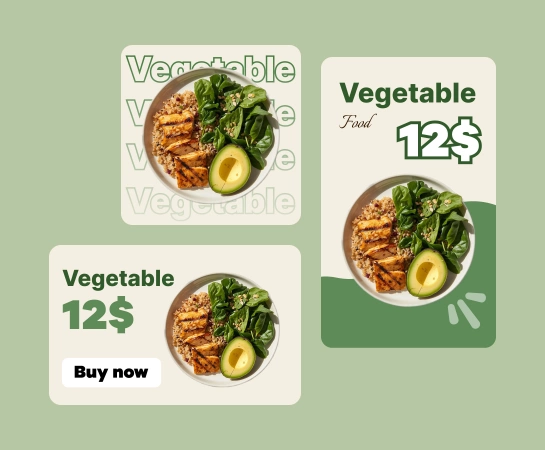
From product images and social posts to thumbnails, hero banners, and campaign visuals, the Design editor helps you build layouts faster with text, shapes, images, backgrounds, and resize presets. It is especially useful when one idea needs to be exported across multiple formats.
Start your free trial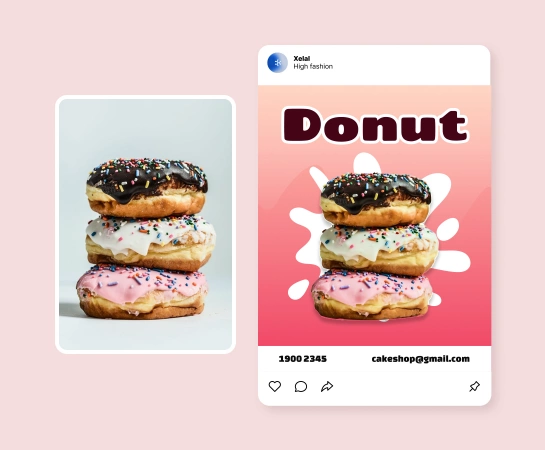
Once the image is inside the editor, you can continue with background removal, object cleanup, enhancement, expansion, or AI-generated visuals to finish the asset. Keeping the workflow in one stack makes production smoother for creators, marketers, and ecommerce teams.
Start your free trial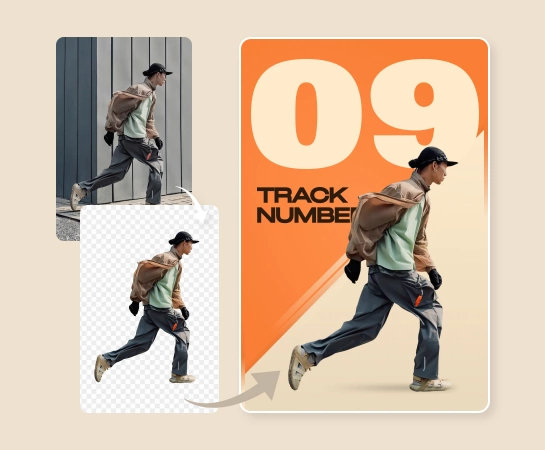
Upload a source image or open the editor and begin building the layout from a clean canvas.
Build the composition with layers, text styling, shapes, background options, and visual adjustments.
Adapt the design to the format you need, fine-tune spacing, and prepare multiple variations for different channels.
Export the final asset or move into AI workflows like Remove Background, AI Enhance, AI Filter, or AI Create.
Explore the main editing capabilities currently available in Magic Eraser Web, from cleanup and enhancement to generation and design.

Create polished layouts with text, shapes, images, layers, and backgrounds inside one browser-based editor.

Switch between common output formats faster when you need versions for social posts, ads, banners, and more.

Add headlines, supporting copy, badges, and simple graphic elements without leaving the canvas.

Fine-tune how images sit inside the layout before exporting the final asset.

Move into cutout workflows when the composition needs a cleaner subject or transparent asset.

Generate fresh visuals and pull them directly into the design workflow for faster creative exploration.

Apply stylistic looks to images before or after placing them inside the composition.

Create more canvas room around an image when the current framing is too tight for the layout.
These examples show how creators, sellers, and marketers use the Design editor to build assets quickly for social media, marketplaces, and campaign production.
"Our team uses the Design editor to turn one source image into social posts, ad visuals, and campaign covers without moving between multiple design apps."
"Text tools, background controls, and resize presets make it much easier to prepare assets for several platforms from one canvas."
"For product content, I can clean the image, add headlines, and export marketplace layouts in the same workflow."
"Thumbnail and banner production feels much lighter when layers, image adjustment, and layout controls all live in one editor."
The Design editor is useful for social media posts, ad creatives, thumbnails, banners, posters, product visuals, and other everyday marketing or creator assets that need layout control.
Yes. The editor is built around a layered canvas where you can add text, shapes, images, and backgrounds, then arrange and refine them inside one workflow.
Yes. Resize tools and layout controls help you adapt the same visual idea across several formats, which is useful for social posts, ads, marketplace graphics, and banners.
Yes. The Design editor fits into a larger workflow that can include Remove Background, AI Enhance, AI Create, AI Filter, AI Expand, and other tools depending on what the asset needs.
A common flow is to start with an image or blank canvas, build the composition with text and visual elements, resize it for the target format, then export or continue with AI-based editing tools.