

"AI Filter lets our team test multiple visual moods for social posts from one source image instead of building every look manually."
Social media manager
Content workflow
Use Magic Eraser's AI Filter tool to transform photos with one-tap styles for portraits, social media content, thumbnails, lifestyle images, and creative marketing assets. Try anime, cinematic, retro, and mood-based photo filters without a complex editing workflow.

AI Filter helps you explore different looks from a single photo without rebuilding the edit each time. Try mood shifts, portrait styles, and more expressive color treatments for faster content iteration.
Start your free trial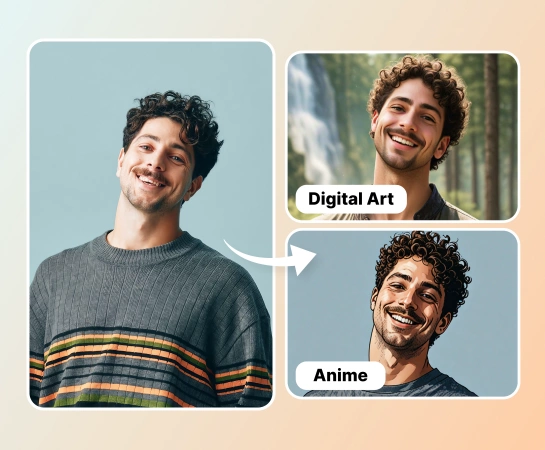
Instead of adjusting tones, contrast, and mood by hand for every asset, choose a filter and preview the transformation immediately. This is useful for teams producing social graphics, creator content, and rapid campaign variations.
Start your free trial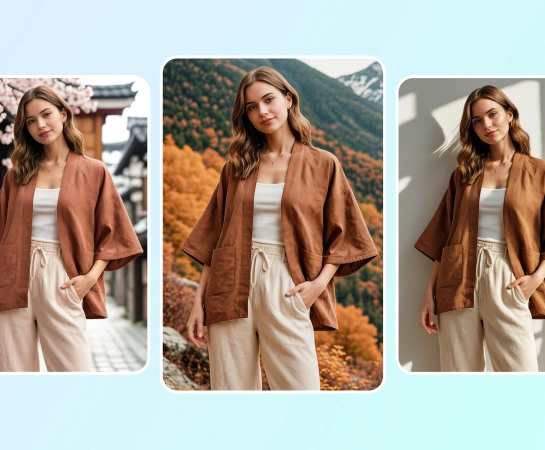
From lifestyle photography and portraits to thumbnails and ecommerce content, AI Filter makes it easier to match a specific vibe. It works well when you need a cinematic, polished, playful, or trend-driven look.
Start your free trial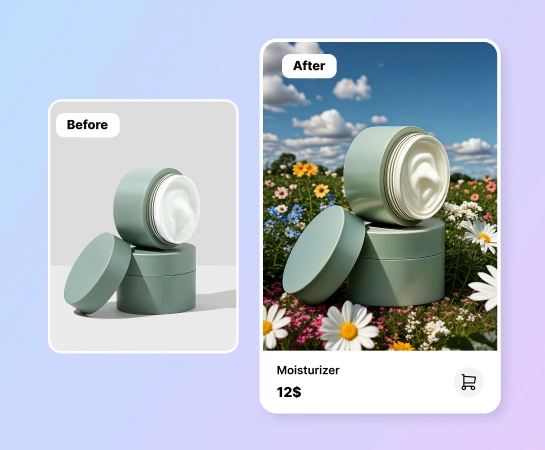
Once the style is in place, continue with other Magic Eraser workflows such as Remove Background, AI Enhance, Design, or AI Create. This makes AI Filter a practical first step in a larger content production flow.
Start your free trial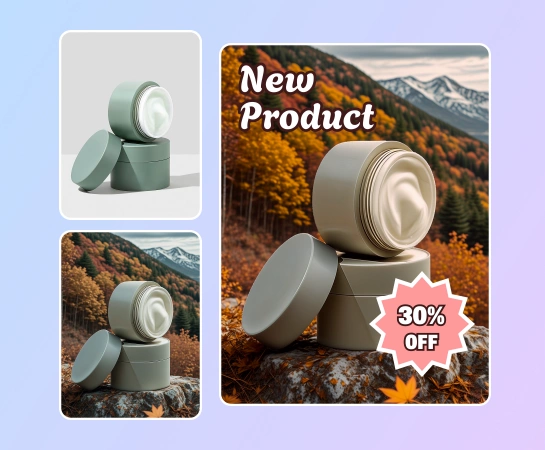
Start with a portrait, product image, lifestyle shot, or any photo you want to restyle with AI.
Browse available looks such as anime, cinematic, retro, portrait, or other mood-based AI styles.
Let Magic Eraser apply the selected AI filter so you can compare the original image against the stylized version.
Export the filtered image or move into other tools like AI Enhance, Remove Background, or Design.
Explore the main editing capabilities currently available in Magic Eraser Web, from cleanup and enhancement to generation and design.

Apply creative AI-powered looks to everyday images with a faster one-tap styling workflow.

Give portraits a more cinematic, polished, playful, or trend-driven look without manual grading.

Switch the visual tone of an image quickly when you need a different campaign feel or platform aesthetic.

Choose a filter and see the result update fast so you can iterate through multiple looks more easily.
Clean up sharpness, color, and clarity after filtering when the image needs a more polished finish.

Take the filtered image into a cutout workflow when you need cleaner product compositions or transparent exports.

Place your filtered image into simple design layouts for ads, posts, thumbnails, and social content.

Pair generated visuals with filter styling to explore more creative directions inside one editing stack.
These examples show how creators, marketers, and sellers use AI Filter to turn ordinary photos into stronger, more stylized visuals with less manual editing.
"AI Filter lets our team test multiple visual moods for social posts from one source image instead of building every look manually."
"Portrait photos feel far more distinctive after applying the right AI filter, especially for creator pages, covers, and profile images."
"When we need faster ad creative exploration, AI Filter helps us generate stylized variants without a heavy retouch process."
"Filtered lifestyle and product visuals are useful for seasonal campaigns when we want a stronger mood without a full reshoot."
Upload a photo, choose the filter you want, and let Magic Eraser apply the selected style automatically. You can then compare before and after, download the result, or continue editing it.
AI Filter is designed for creative styles such as portrait looks, cinematic moods, retro aesthetics, anime-inspired treatments, and other visual transformations depending on the templates available in the app.
AI Filter works well for portraits, lifestyle photos, social content, product visuals, thumbnails, and creator assets that need a stronger look or more distinctive visual identity.
Yes. After applying a filter, you can continue into other Magic Eraser Web tools such as AI Enhance, Remove Background, Design, or other workflows depending on what you need next.
The usual flow is simple: upload an image, choose a filter, preview the result, compare the new look with the original image, and export or continue editing.