

"Use AI Enhance to make product images brighter and sharper before uploading them to your storefront or marketplace listing."
E-commerce seller
Product photo workflow
Use Magic Eraser's AI Enhance tool to improve clarity, color, face details, and image resolution in seconds. Upgrade product photos, portraits, social media images, and low-quality visuals with a faster editing workflow.

Upgrade soft, dim, or flat images without rebuilding them manually. AI Enhance helps recover cleaner color, sharper detail, and a more polished look for ecommerce, social content, and portraits.
Start your free trial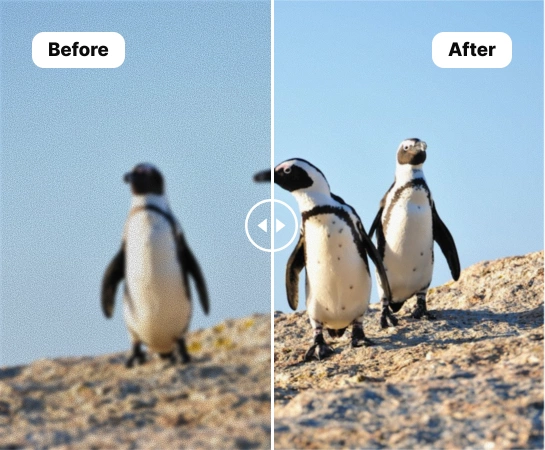
When source images are too soft, dim, or inconsistent, AI Enhance helps creators, sellers, and marketers improve them faster without opening a complex editing stack. It is a practical way to clean up everyday images before publishing, listing, or repurposing them.
Start your free trial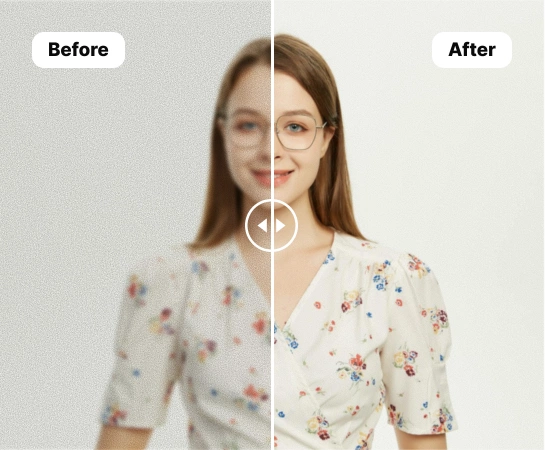
From ecommerce product shots and portraits to marketplace listings and social visuals, AI Enhance helps improve sharpness, lighting, and subject clarity. It is especially useful for images that need color recovery, facial detail, or a cleaner high-resolution export.
Start your free trial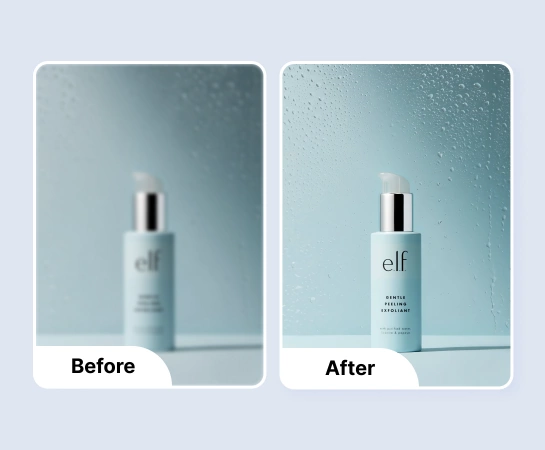
Enhancement is often just the cleanup step before the rest of the workflow. Once your image looks clearer and more polished, you can move into background removal, design, resizing, or canvas expansion. This creates a faster path from average source image to production-ready asset.
Start your free trial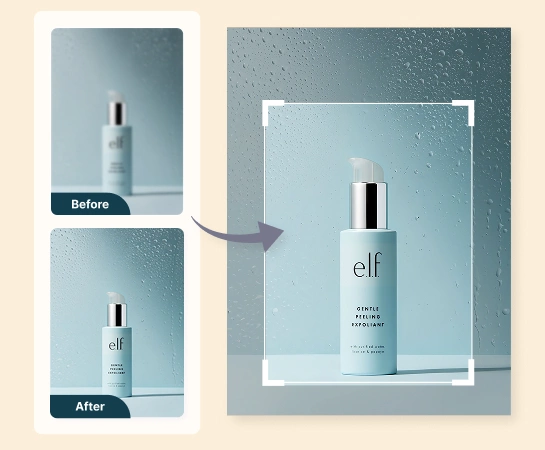
Choose a product photo, portrait, or any image that needs better sharpness, color, or overall clarity.
Turn on color enhancement, face enhancement, or high-resolution processing based on what the image needs.
Let Magic Eraser process the image and improve detail, brightness, color, and facial clarity automatically.
Export the improved image or continue into other workflows like Remove Background, Design, or AI Expand.
Explore the main editing capabilities currently available in Magic Eraser Web, from cleanup and enhancement to generation and design.

Improve image clarity and overall polish with a faster AI-based enhancement workflow.

Recover cleaner color and better visual vibrancy for flatter or dull-looking images.

Bring out clearer facial detail for portraits, profile photos, and creator content.

Improve image resolution so the result works better in larger layouts and exports.

Move the improved image into a cutout workflow when you need a cleaner composition or transparent asset.

Extend the enhanced image into wider layouts for ads, banners, and presentation formats.

Use the enhanced image inside simple design flows to add text and publish-ready layout elements.

Clean up distractions after enhancement when you want a simpler or more focused final visual.
These examples reflect common ways creators, marketers, and sellers use AI Enhance to improve image quality faster.
"Use AI Enhance to make product images brighter and sharper before uploading them to your storefront or marketplace listing."
"Face enhancement helps portrait and profile images look cleaner and more polished for social media, resumes, and creator pages."
"When the source photo is slightly soft or poorly lit, AI Enhance helps rescue the image quickly enough for ad and content use."
"Teams can use enhancement as a cleanup step before moving the image into background removal, design, or other publishing workflows."
Upload an image, choose the enhancement options you want, and let Magic Eraser improve clarity, color, facial detail, or resolution automatically. You can then download the result or continue editing it.
AI Enhance works well for product images, portraits, profile pictures, social content, and everyday visuals that need better sharpness, lighting, or overall image quality.
The main modes currently focus on color enhancement, face enhancement, and high-resolution output so you can improve the image based on the type of problem you are fixing.
Yes. After enhancement, you can continue into other Magic Eraser Web tools such as Remove Background, AI Expand, Remove Objects, or Design depending on your workflow.
The typical flow is simple: upload the image, choose enhancement settings, run the edit, compare before and after, and export the improved version.